Professional email at your own domain — [email protected] — with a clean,
private webmail. Use it in your browser, on your phone, in Gmail, or in Outlook.
What You Get
Mailboxes on your domain (hello@, sales@, your own name — as many as you need)
Works everywhere: the webmail, your iPhone / Android Mail app, Gmail, or Outlook
Spam filtering, search, attachments up to 20 MB, and generous storage
We handle the technical setup (SPF, DKIM, DMARC) so your mail lands in inboxes — not spam
Nothing to install, no per‑seat Google fee. It's part of your Reputifly Cloud hosting. We create your address and hand you the password — you just sign in.
Use the full email address (e.g. [email protected]) and the password we sent you.
That's It
Read, write, attach files, star, search, and archive — just like any modern inbox. You stay signed in until you click Log out, even after closing the tab.
On your phone, open webmail.reputifly.cloud and use your browser's "Add to Home Screen" for a one‑tap, app‑like icon.
Use It In Gmail
Already live in Gmail? You can send and receive your domain email straight from your existing Gmail account. There are two parts — sending, then receiving.
Part 1 — Send As Your Address
A one‑time setup, done on a computer, so your replies come from [email protected] instead of your personal @gmail.com. Just follow the pictures below — in each one, the red box shows exactly what to click.
Open Gmail Settings
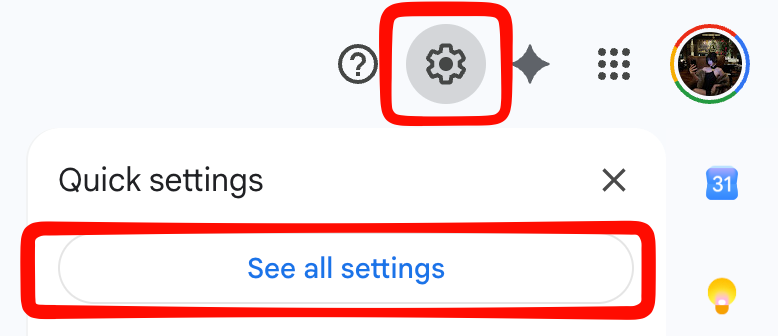
On a computer, open Gmail. Click the gear ⚙ at the top‑right, then click See all settings.
Click the gear ⚙, then See all settings.
Open The "Accounts And Import" Tab
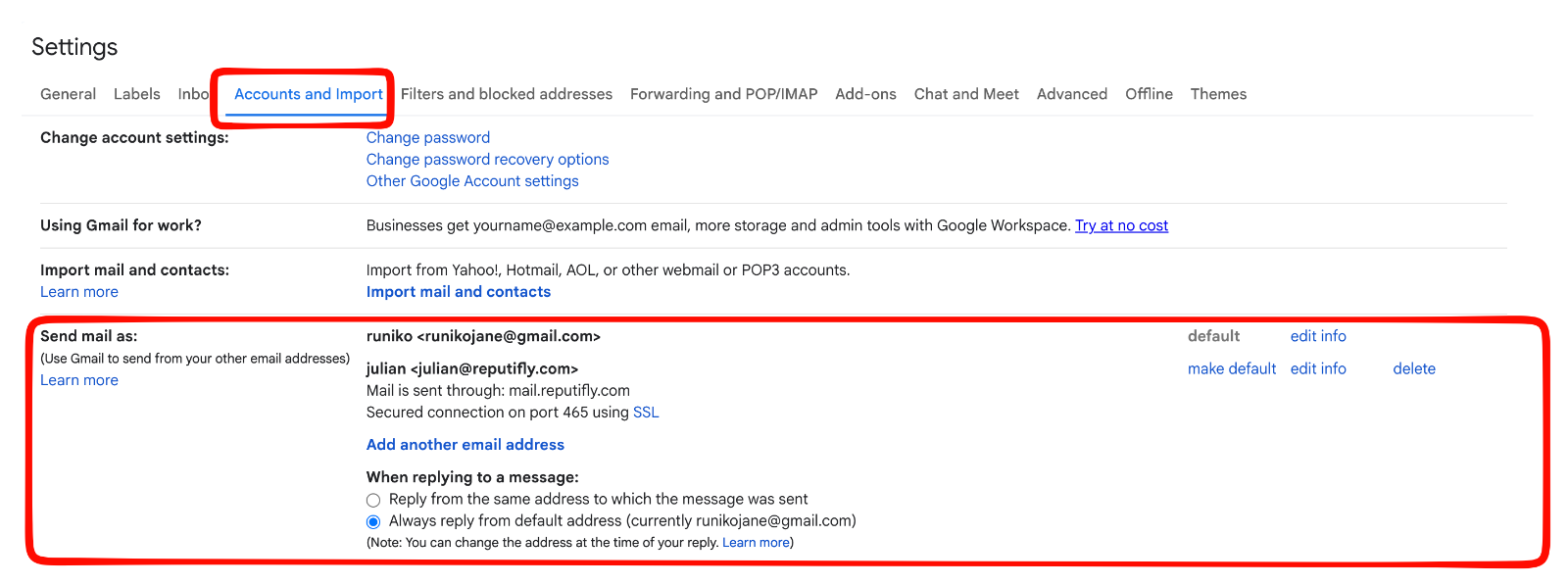
Along the row of tabs at the top of Settings, click Accounts and Import.
Click the Accounts and Import tab.
Click "Add Another Email Address"
Find the Send mail as row, and click Add another email address.
Under Send mail as, click Add another email address.
Enter Your Name And Address
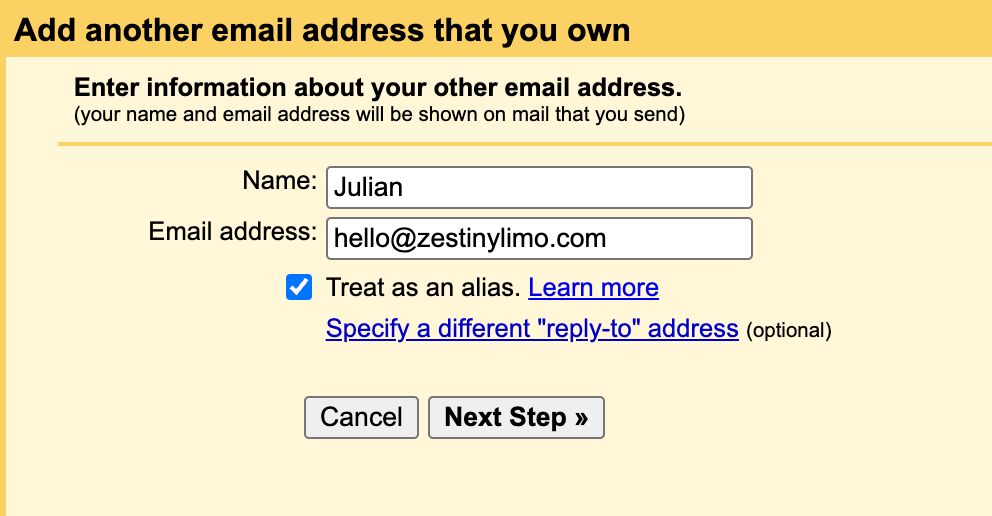
A small window opens. Type your Name and your full Reputifly address (for example [email protected]). Leave "Treat as an alias" ticked, then click Next Step.
Your name + your address, "Treat as an alias" ticked → Next Step.
Enter The Outgoing (SMTP) Server
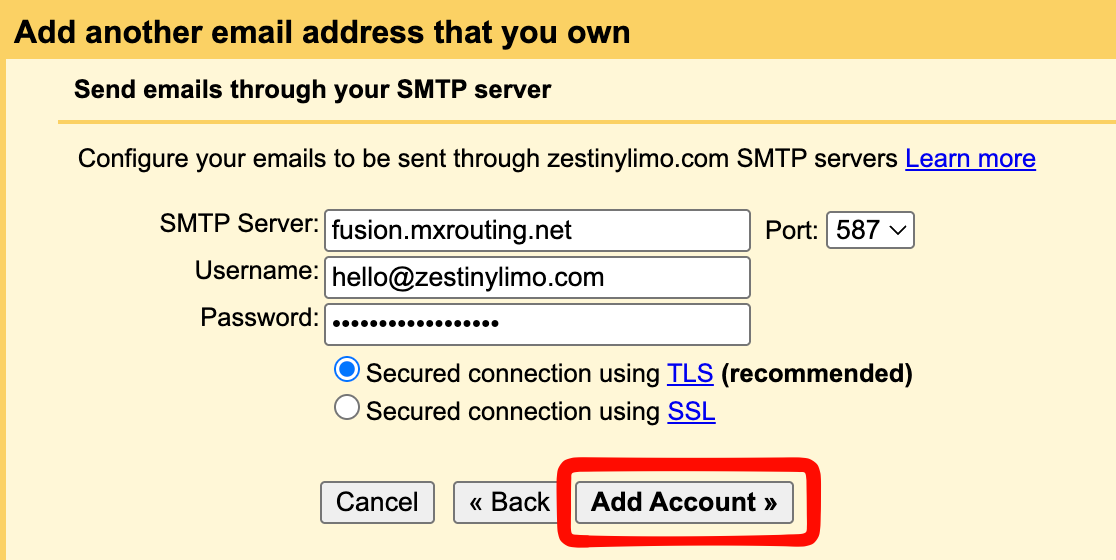
Fill the boxes exactly like this, then click Add Account:
• SMTP Server: fusion.mxrouting.net • Port: 587 • Username: your full email address
• Password: your mailbox password
• Choose Secured connection using TLS (That's the password we gave you for this mailbox. We can never see it — if you've lost it, you can reset it inside your webmail from your profile menu.)
Server fusion.mxrouting.net · port 587 · TLS → Add Account.
Gmail Sends A Confirmation
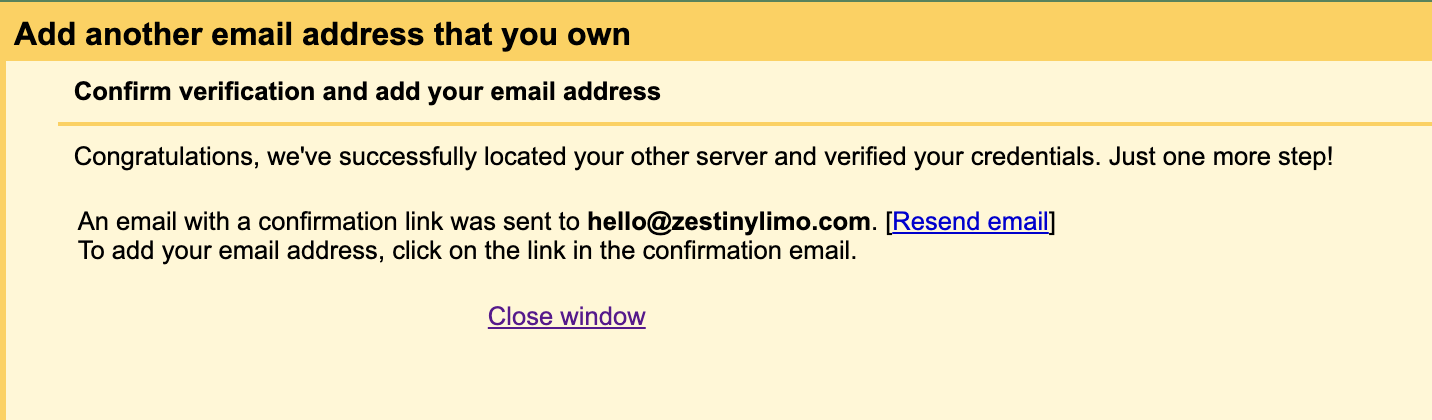
Gmail confirms it found your server, and emails you a confirmation link. Leave this little window open, and go open that email next.
Gmail has sent a confirmation email — now go and open it.
Open The Confirmation In Your Webmail, Then Click The Link
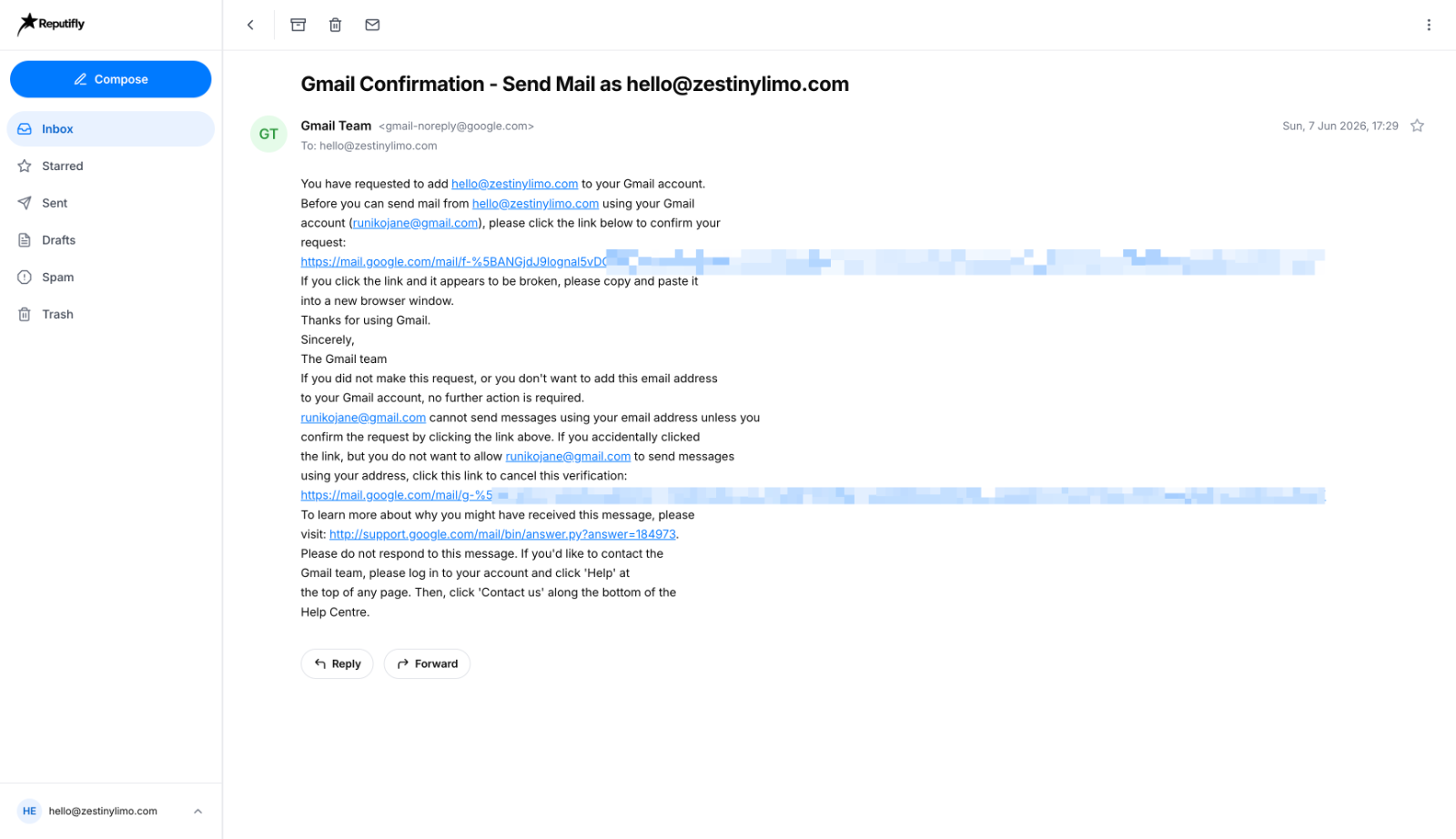
This is the important step. Gmail's confirmation email arrives in your Reputifly webmail — not in your Gmail. Go to webmail.reputifly.cloud, open the message titled "Gmail Confirmation — Send Mail as…", and click the confirmation link inside it. A short "success" page opens — you're verified.
In your Reputifly webmail, open the Gmail Confirmation email and click the link inside.
Done — Pick Your Address When You Write
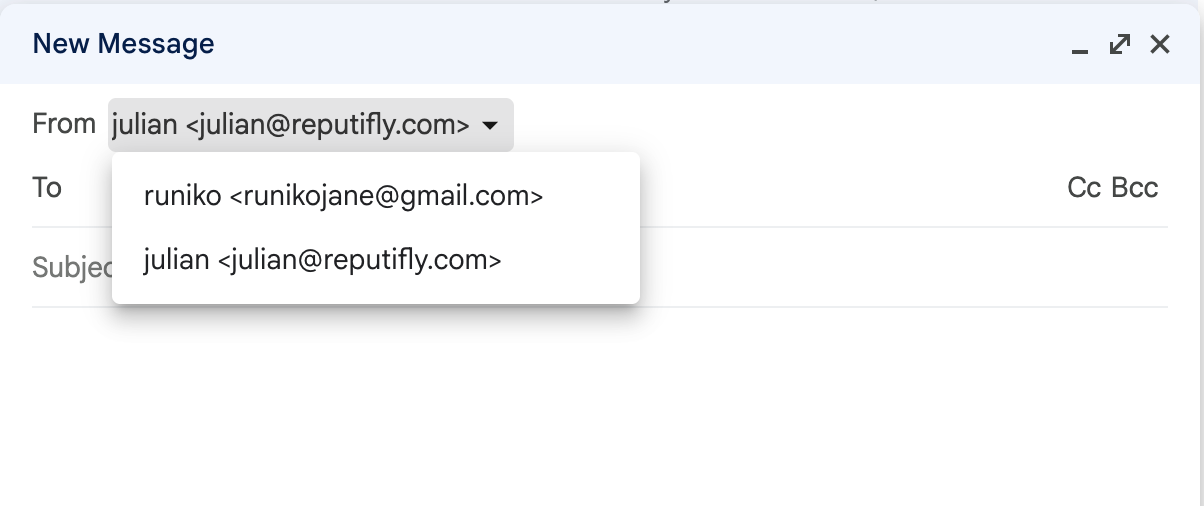
That's it! Whenever you write a new email in Gmail, click From at the top of the message and choose your Reputifly address. Your mail now goes out from your professional address.
Turn forwarding on once, inside your webmail, and a copy of every incoming message also lands in your normal Gmail inbox — making Gmail the single home for everything. It takes about 15 seconds.
Open “Email forwarding”
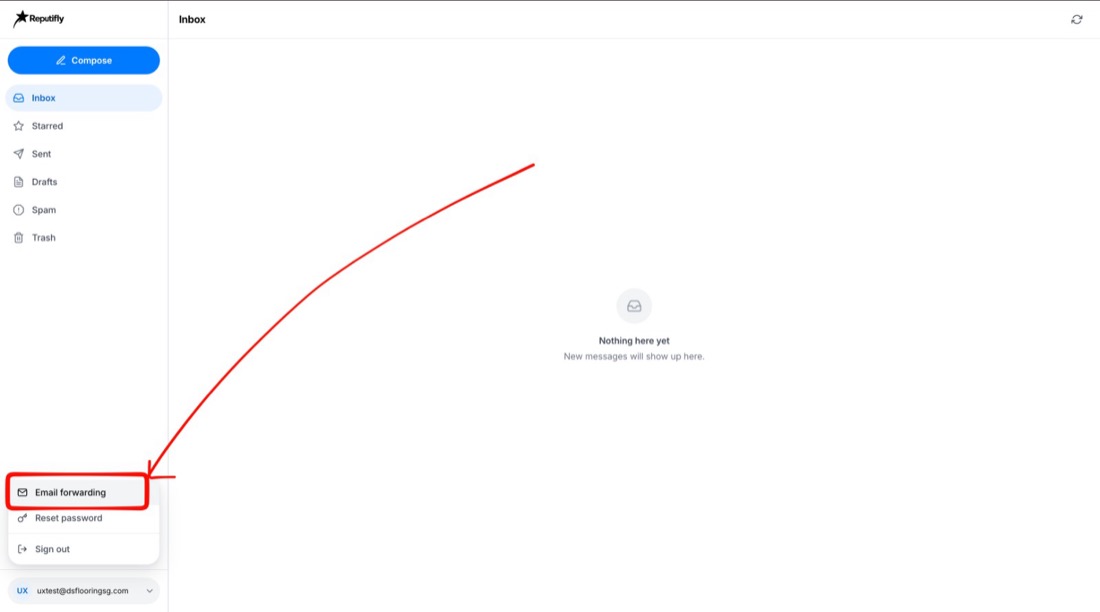
In your webmail, click your email address at the bottom‑left to open the menu, then click Email forwarding.
Bottom‑left menu → Email forwarding.
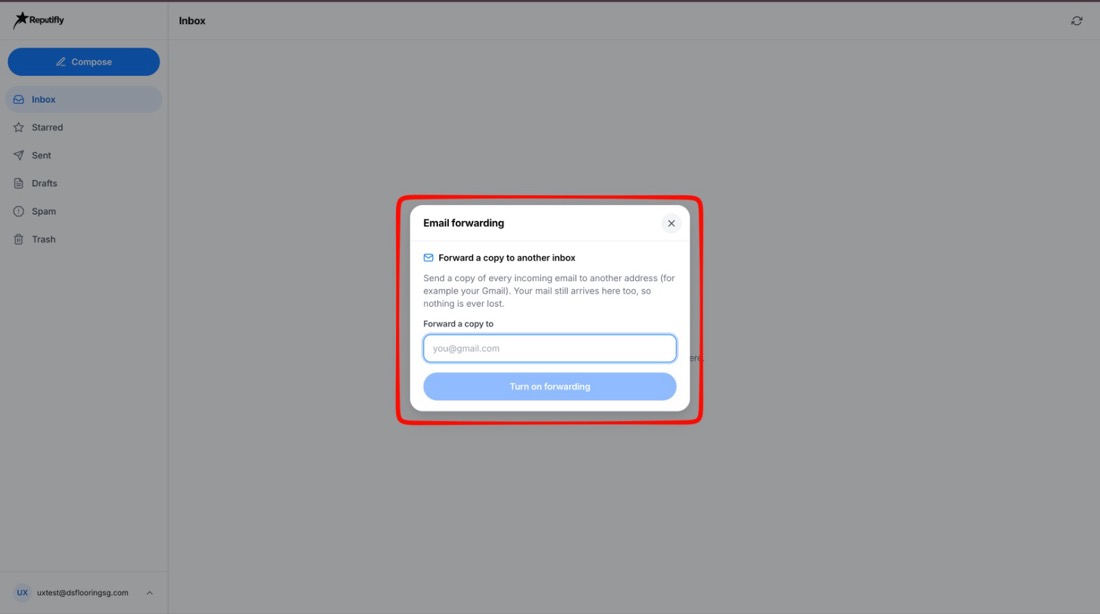
Enter Your Gmail And Turn It On
Type the inbox where you'd like a copy (for example your @gmail.com), then click Turn on forwarding. Done — new mail now arrives in both places.
Type your email → Turn on forwarding.
Your mail is never lost. A copy always stays in your Reputifly mailbox too — forwarding only adds a copy to your Gmail, it never moves your mail away. You can change the address or switch it off anytime from the same screen.
More Options
Your webmail and Gmail cover almost everyone. If you want more, here are two short guides:
Google Drive, Photos & Gemini under your professional address — free, no Google Workspace needed. See the Google apps guide →
Outlook, or your phone's Mail app — add your mailbox over IMAP. The exact server settings live in the Outlook & devices guide →
Frequently Asked Questions
Do I have to use the webmail?
No. Use the webmail, your phone's Mail app, Gmail, or Outlook — whatever you like. They all show the same mailbox, kept in sync.
Will my email land in spam?
We configure SPF, DKIM and DMARC for your domain, so your mail is properly authenticated and lands in inboxes — verified on real sends to Gmail and Outlook.
Can I get more addresses (sales@, accounts@…)?
Yes — just ask your Reputifly contact and we'll add them in minutes.
I forgot my password.
Contact your Reputifly contact and we'll issue you a fresh one straight away.
Is it private and secure?
Yes. The webmail never stores your password, every connection is encrypted (TLS), and you stay signed in only on your own device until you log out.