Reputifly Email setup All apps
Recommended Android · iPhone · iPad 2–3 minutes

Add Your Work Email to Gmail.

Your business email will appear as a separate account inside the Gmail app. You can send and receive directly from it.

Already have the Gmail app? You only need the email address and password we sent you.

Have These Ready

Your Full Work EmailExample: [email protected]
Your Mailbox PasswordUse the password sent by your Reputifly representative.

Set It Up

Use the same steps on Android, iPhone and iPad.

1

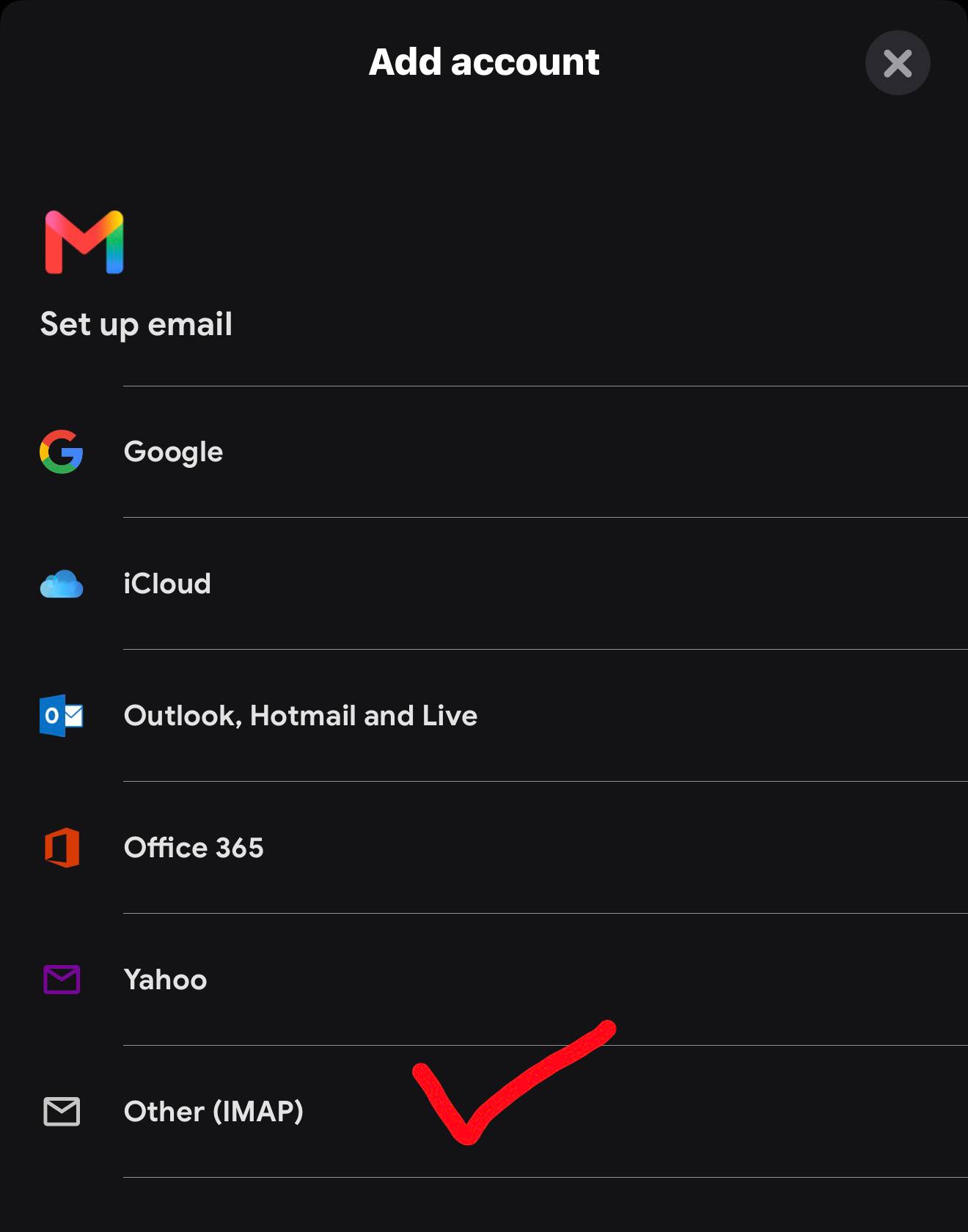
Open the Gmail Account Menu

Open Gmail and tap your profile picture at the top-right.

Profile PictureAdd Another AccountOther (IMAP)
Gmail Add account screen with Other IMAP selected
Choose Other (IMAP)—not Google.
2

Enter Your Work Email

Type the complete address—such as [email protected]—then tap Next.
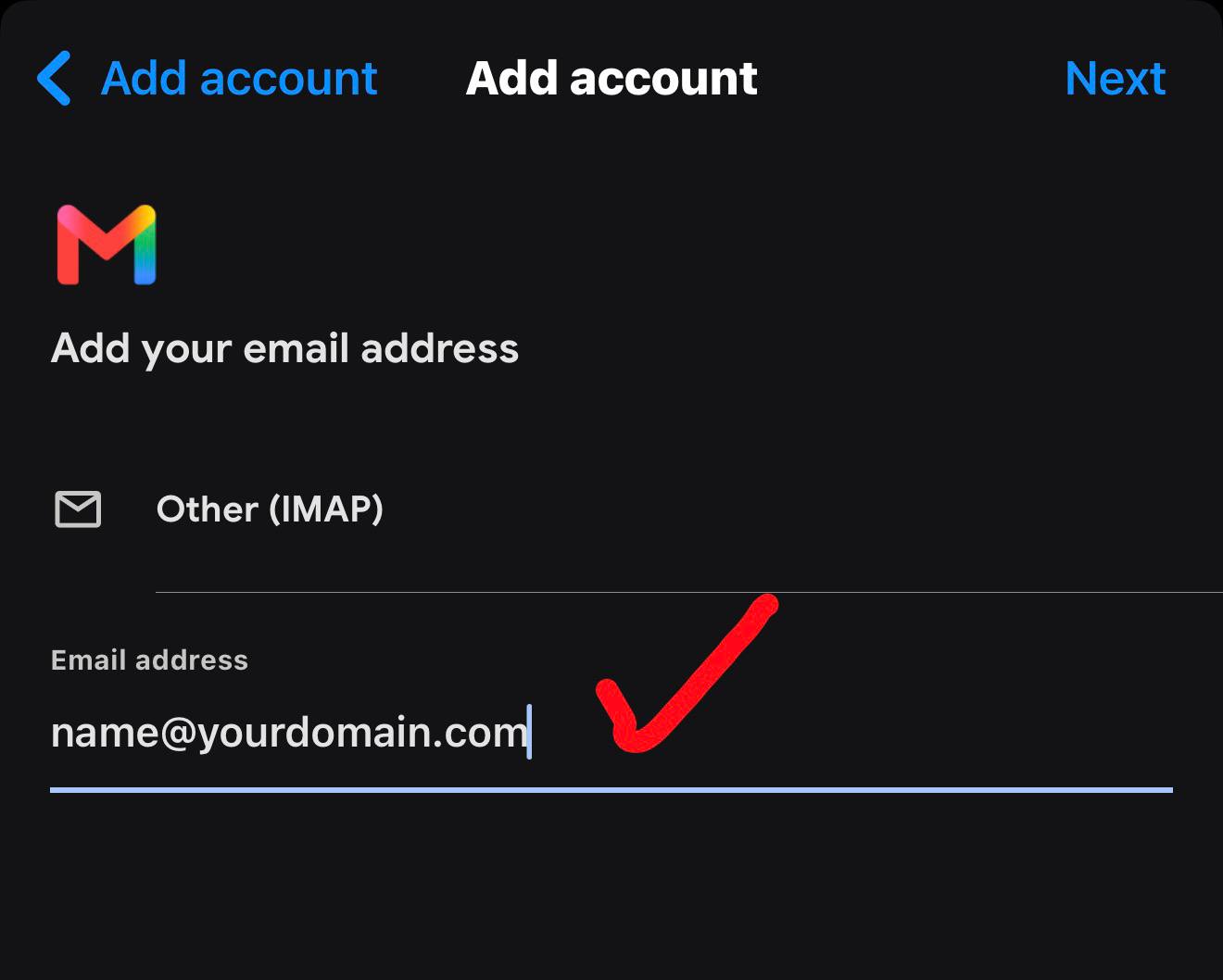
Gmail Other IMAP screen for entering a full work email address
Use your full work email address.

Copy These Settings

Your email and password are unique. Everything else stays the same.

IN Incoming Mail
UsernameYour full email address
PasswordYour mailbox password
IMAP serverfusion.mxrouting.net
Port993
SecuritySSL/TLS
Incoming Done Tap Next Gmail will now show the outgoing mail screen.
OUT Outgoing Mail
SMTP serverfusion.mxrouting.net
Port587
SecuritySTARTTLS / TLS
Require sign-inYes
UsernameYour full email address
PasswordSame mailbox password
Keep Require sign-in on, then tap Next until Gmail finishes.

Done—Your Work Email Is Inside Gmail.

Tap your profile picture anytime to switch accounts. When writing, make sure your work address is selected in the From field.